



Documentation contents
Inbox and e-mail
Knowledge base
Files
Analytics
Account and billing
Reminders and your calendar
Updated
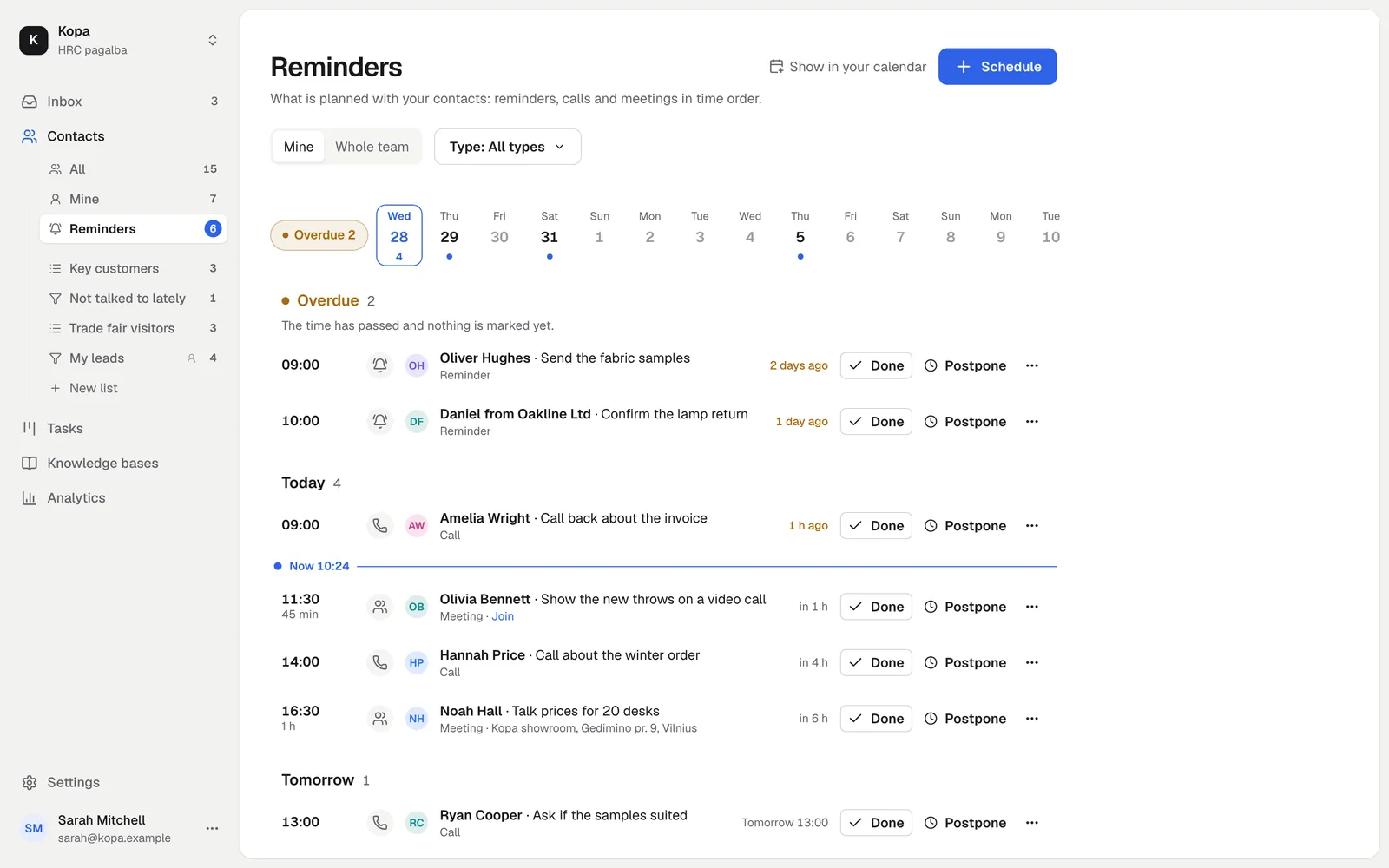
In Contacts, Reminders you see everything planned with your contacts: reminders, calls and meetings in time order. You can see the same items in your own calendar too.
The reminders timeline
Every item has a type (reminder, call or meeting), a time, a contact and a short note. You can add a duration and a place or a meeting link, such as Google Meet. A contact can have several items. Create a new one with "Schedule" here or on the contact page.
An item is for the contact's assignee, or for whoever scheduled it when there is no assignee. Pick another member in the "For" field.
Items are grouped by time in your company's time zone:
- Overdue: items from earlier days that nobody has marked yet. They show in a quiet warning colour and never disappear by themselves.
- Today: the "Now" line shows where you are. Above it is what should have happened today, below it what is still to come.
- Tomorrow, This week and Later: what comes next, grouped by day.
- Recently done: items done or that did not happen in the last 7 days. This part is folded; open it with one click.
The strip above the list shows the next 14 days and how much is planned each day. Click a day and the list scrolls to it. Each item shows how much time is left or has passed, like "in 40 min" or "2 days ago".
Actions on an item:
- Done: the item moves to "Recently done". While the notice shows, you can choose "Undo".
- Postpone: in 1 hour, tomorrow at the same time, in a week or to a date you pick.
- The ⋯ menu: "Edit", "Open contact", "Did not happen" and "Delete". Choose "Did not happen" when a call or a meeting did not take place. The item also moves to "Recently done".
- Reopen: in "Recently done", brings a done item or one that did not happen back to the list.
"Mine" shows the items for you, "Whole team" the items of every member with the assignee's name. The "Type" filter keeps only reminders, calls or meetings. The number next to "Reminders" in the menu counts your overdue and today's items.
On a phone the list shows in one column. The round button on the right marks an item done, and tapping the item opens every other action.
When it is time, a Telegram notice comes if Telegram is linked and "Contact reminders" is on (Notifications).
Connect your calendar
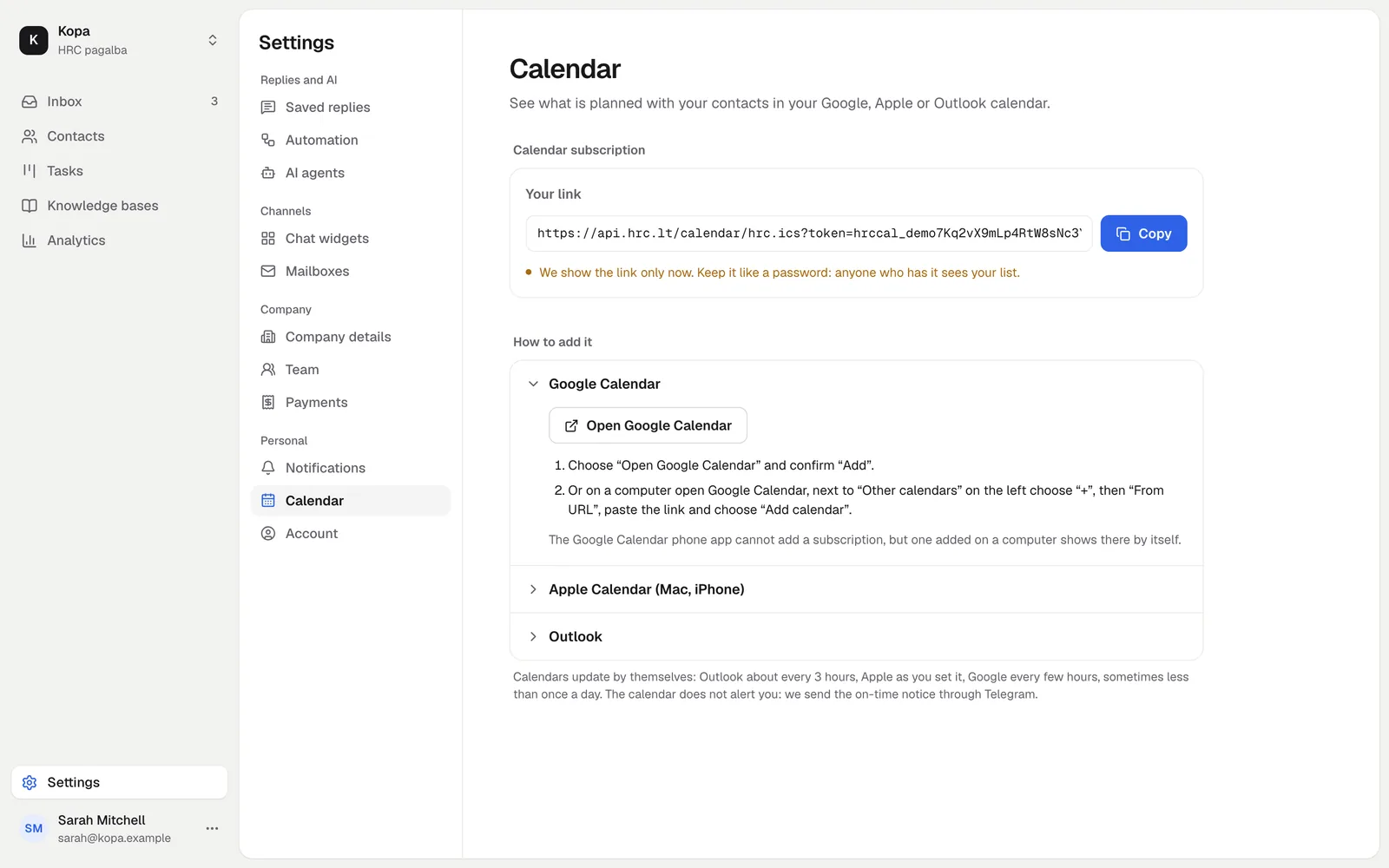
You can see your planned items in your Google, Apple or Outlook calendar through a private calendar subscription link. Your calendar reads it by itself and shows the items. You change the items here, and the calendar updates.
- Open Settings, Calendar, or choose "Show in your calendar" in Reminders.
- Under "What to show" pick "Only mine" or "Whole team".
- Choose "Create link", then "Copy" or the button for your calendar below.
In the calendar you see the contact's name, the note, the place and a link to the contact in the app. The contact's e-mail and phone are not there. Items from 30 days back to a year ahead show. Done items start with "Done:", and items that did not happen with "Did not happen:". The link marks items that did not happen as cancelled, so Google Calendar usually does not show them.
Google Calendar
- Choose "Open Google Calendar" and confirm "Add".
- Or on a computer open Google Calendar, next to "Other calendars" on the left choose "+", then "From URL", paste the link and choose "Add calendar".
The Google Calendar phone app cannot add a subscription, but one added on a computer shows there by itself.
Apple Calendar (Mac, iPhone)
"Open Apple Calendar" opens the subscription right away. Or:
- Mac: in Calendar choose File, New Calendar Subscription, paste the link, set Location to iCloud (so it shows on your iPhone too) and Auto-refresh to Every hour.
- iPhone: Settings, Calendar, Accounts, Add Account, Other, Add Subscribed Calendar, paste the link.
Outlook
The "Open Outlook" button is for a work or school Microsoft 365 account. For Outlook.com, follow the steps: in Outlook.com or the new Outlook open the calendar, choose "Add calendar", then "Subscribe from web", paste the link, give it a name and choose "Import".
When the calendar updates
Calendars read the link by themselves, at their own pace: Apple as you set it, for example every hour, Outlook about every 3 hours, Google every few hours, sometimes less than once a day. So a new or moved item does not show in the calendar at once.
The calendar does not alert you: we send the on-time notice through Telegram.
The link is a password
We show the link only once, right after you create it. Keep it like a password: anyone who has it sees your list. Later, the settings show only the start of the link, when it was created and when a calendar last read it.
- Create a new link: the old link stops working at once, so you need to replace it in your calendars. Do this when you lost the link, when someone shared it, or when you want to add one more calendar.
- Turn off link: calendars get no new items. Items they already show may stay until you remove the subscription.
- What to show can change any time, and the link stays the same.
Each member has their own link in each company. When a member leaves the company, their link stops working.
Did not find the answer? Write to us